

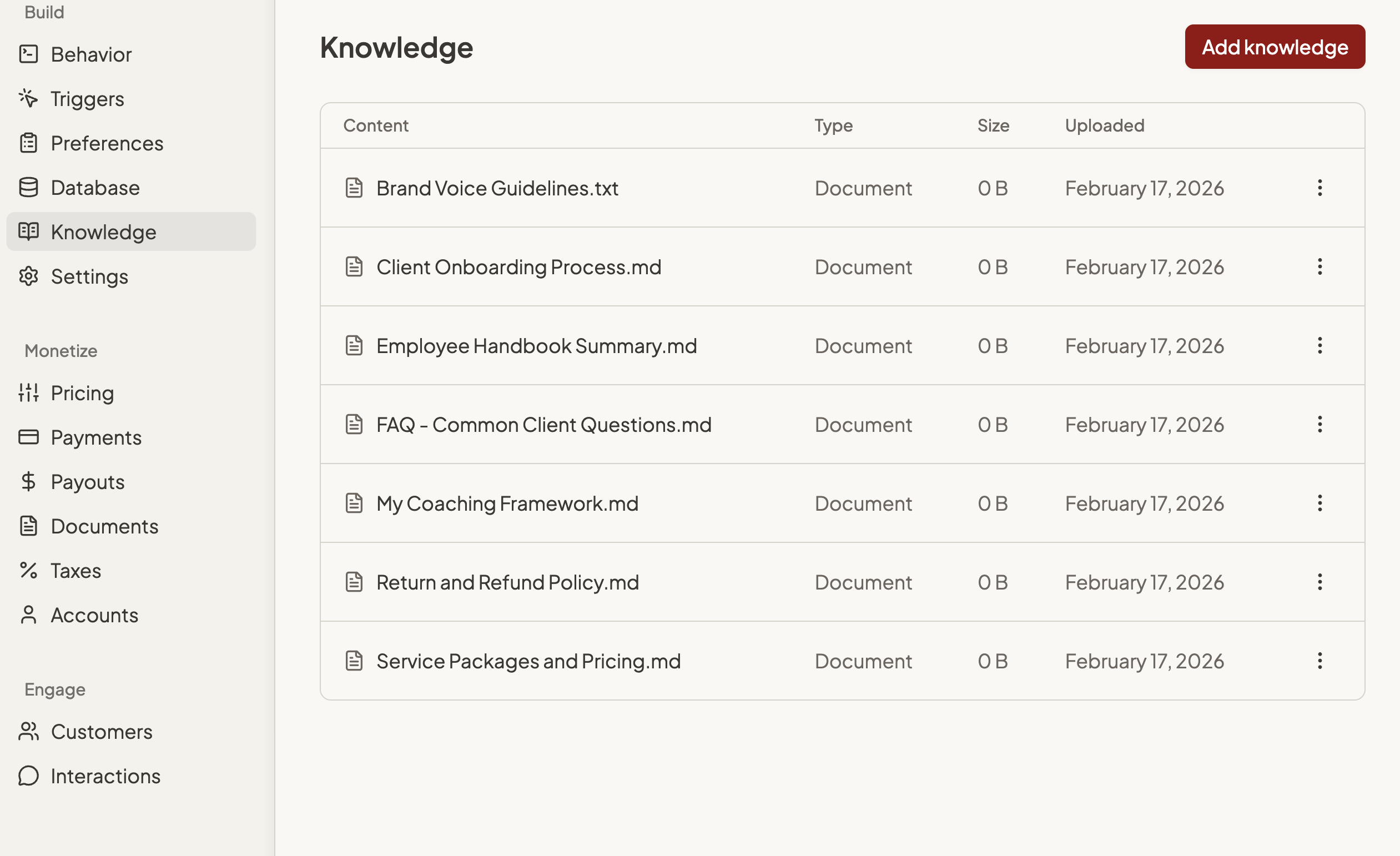
How Knowledge Works
When you add knowledge, your agent absorbs your expertise and draws on it naturally when responding to subscribers. It automatically finds the right information at the right time — no extra setup required. This means your agent doesn’t just follow instructions — it has depth. It can reference your actual methodologies, follow your real procedures, and provide the kind of specific, informed answers that only someone with your background could give.Real-World Examples
A life coach might upload:- Their proprietary coaching framework document
- A workbook of exercises and reflection prompts
- An FAQ covering common client questions
- Service descriptions and pricing guides
- Process documentation and delivery templates
- Case study summaries for reference
- Company policies and employee handbooks
- Standard operating procedures (SOPs)
- Product specifications or technical documentation
Subscriber Experience
Subscribers won’t see your knowledge files directly — they’ll just notice that your agent gives better, more specific answers. When a subscriber asks a question that relates to something in your knowledge, the agent pulls from those files behind the scenes and responds with accurate, detailed information. For example, if you uploaded your return policy and a subscriber asks “how do I return an item?”, your agent will reference the actual policy document and walk them through the correct steps — instead of giving a generic answer.Types of Knowledge Files
Documents
Written content your agent can read and reference — methodology guides, policies, how-to instructions, FAQs, research summaries, or any text-based material. Supported formats: Markdown (.md), Text (.txt), PDF (.pdf)Images
Visual references your agent can interpret — diagrams, charts, infographics, screenshots, or photos that help your agent understand and describe visual concepts. Supported formats: PNG, JPG, GIFConfigure with Violet (Chat)
The fastest way to add knowledge is through your conversation with Violet. Simply attach a file and tell Violet what it is.“Here’s our coaching methodology guide. Add this to my agent’s knowledge.”
“I’m attaching our company’s return policy. My agent should use this when answering questions about returns.”
“Add this product catalog image to my agent’s knowledge so it can reference our current lineup.”Violet will upload the file and confirm it’s been added. You can keep building without leaving the conversation.
Violet has file size limits for uploads. If you have a larger file, use the manual upload option in the Knowledge panel instead.
Configure Manually
You can also manage your agent’s knowledge directly through the project settings.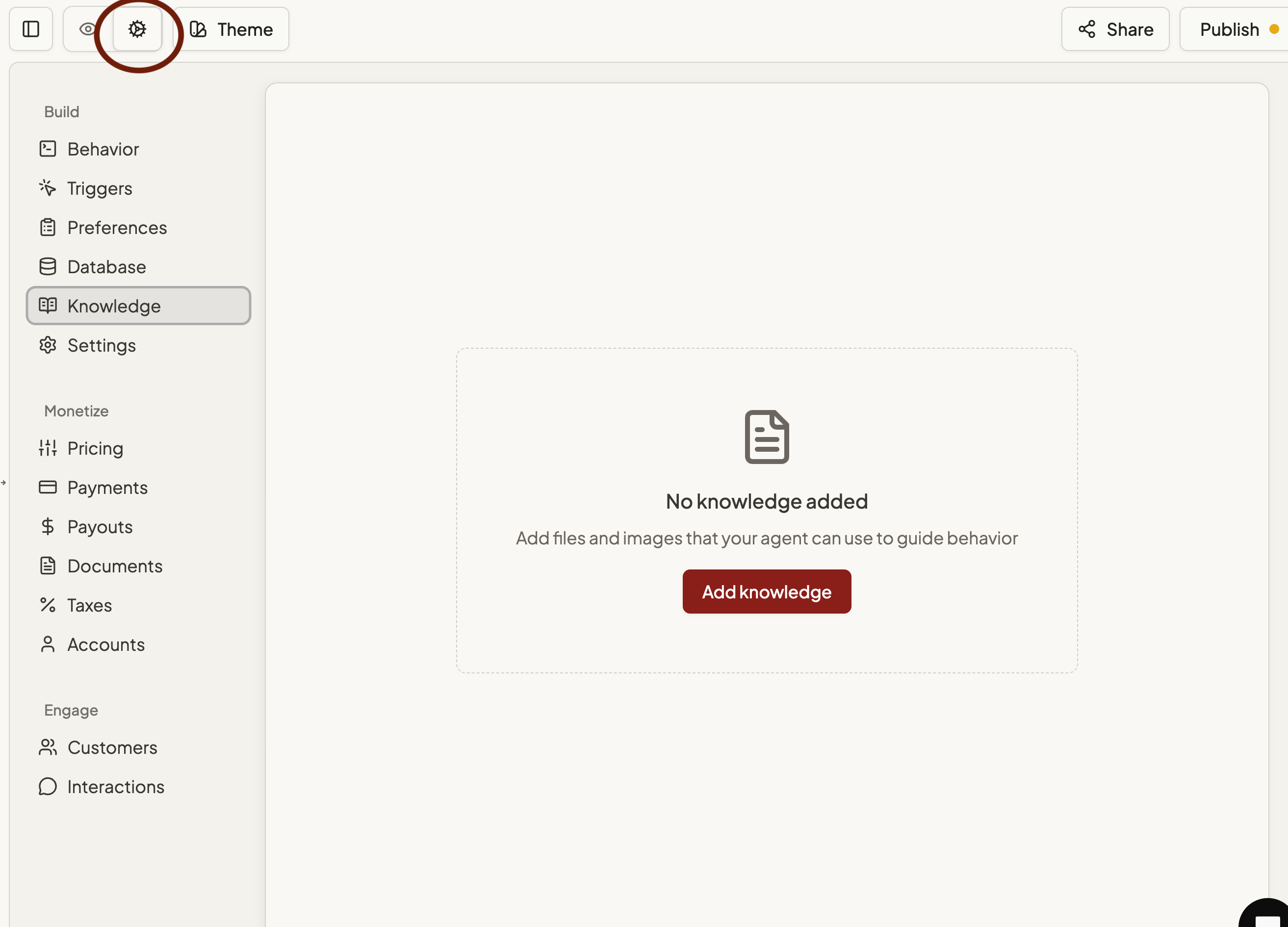
- Select the project settings icon to switch from your agent preview
- Click Knowledge in the left navigation under Build
- Click the Add knowledge button
- Select files from your computer to upload
- Your files will appear in the knowledge list immediately
- Find the file in your knowledge list
- Click the three-dot menu next to the file
- Select Delete
Knowledge Options
Content — The file name Type — The format of the file Size — The file size. Uploaded — The date the file was added to your agent’s knowledge.The maximum effective file size depends on the AI model powering your agent. For the best results, consider breaking large documents into smaller, focused files — for example, separate files for each policy or each chapter rather than one massive document.
Instructing the Agent
Your agent automatically searches its knowledge when responding to subscribers, so in many cases you don’t need to do anything extra. Just upload your files and your agent will use them. For more control, you can add smart references in your agent’s behavior instructions or skills to point the agent toward specific knowledge files using the@[fileName] format and selecting from the list.
Here are some examples of how you might use smart references in your behavior instructions:
“When answering questions about returns, always consult @ReturnPolicy for the current policy.”
“Use @CoachingFramework as the foundation for all coaching recommendations.”
“Reference @PricingGuide when subscribers ask about service tiers or costs.”Smart references are helpful when you want your agent to consistently prioritize a particular document for certain topics. They’re also useful in skills — if you have a skill that handles a specific type of request, you can point it to the exact knowledge file it needs.
You don’t need to use smart references for your agent to access knowledge. They’re an optional way to give your agent more precise guidance about which files to use and when.
Getting Started
- Think about what makes you the expert — what documents, guides, or materials capture your unique approach?
- Keep files focused — smaller, single-topic files work better than one large document covering everything
- Upload through Violet or the Knowledge panel in the left navigation
- Preview your agent and ask questions that should draw on your expertise to make sure it responds the way you would
- Add smart references in your behavior instructions if you want your agent to prioritize specific files for certain topics