> ## Documentation Index
> Fetch the complete documentation index at: https://help.appy.ai/llms.txt
> Use this file to discover all available pages before exploring further.
# Connecting Violet
> Every way to reach your AI team — Slack, Teams, Telegram, iMessage, and email — and how to set each one up.
Your agents live wherever you already work. Connect a channel once and you can message Violet from it the same way you'd message a colleague — no separate login, no new app to learn.
All five channels work the same way once connected: describe what you need in plain language, and Violet routes it to the right specialist. Results come back in the same thread where you asked.
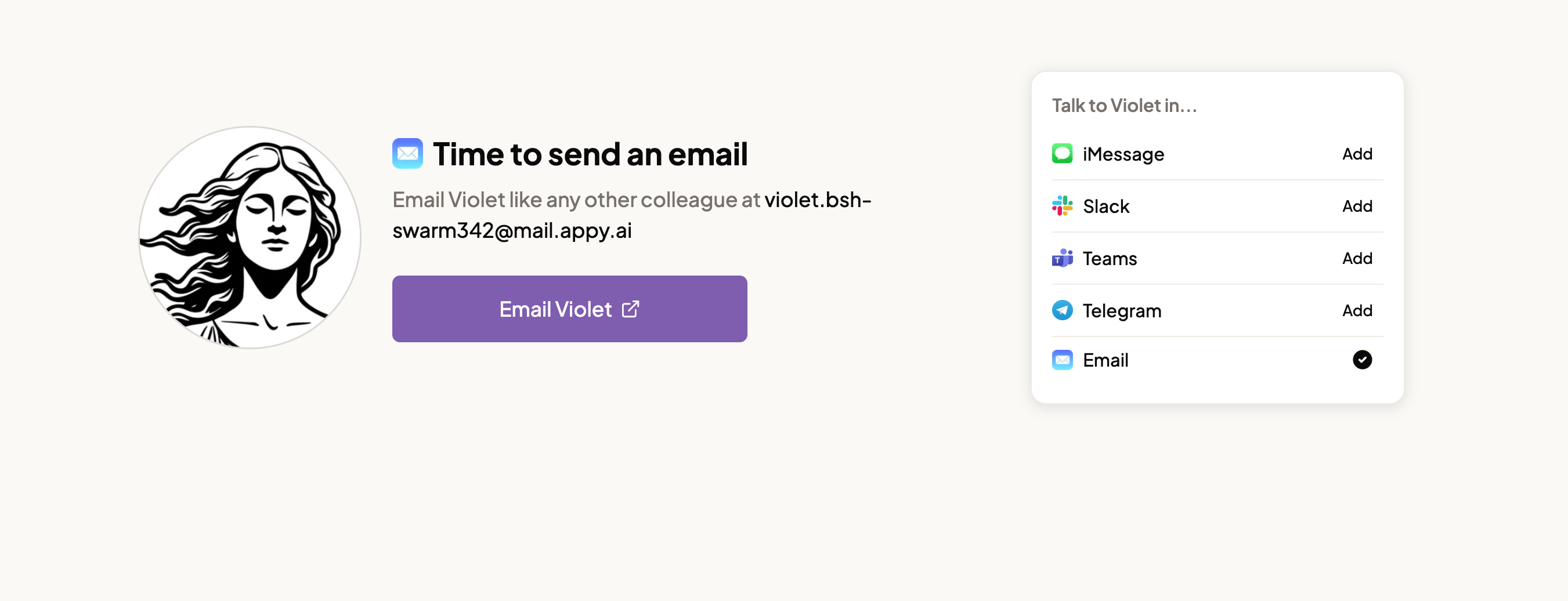
Visit [builder.appy.ai](https://builder.appy.ai) any time to see every channel in one place. Every channel you haven't connected yet shows there with an **Add** button; every one you have shows **a check mark**.
 ## Slack
Appy.AI installs in your Slack workspace as an app. Once it's there, message it like any other teammate — open a direct message, or @mention it in a shared channel.
To connect, click **Connect to Slack** and authorize the app to access your workspace. Once connected, it's available to everyone in your organization.
## Microsoft Teams
Appy.AI works inside Microsoft Teams as a custom app. Once installed, your team can message AI agents without leaving Teams — send a DM, or @mention an agent in a channel and it responds in the thread.
Setup requires a Microsoft global administrator to upload the app and grant permissions — about 10 minutes total. Click **Connect to Teams** to start; you'll be offered an assisted or self-serve install path.
Microsoft Teams also lets you restrict who can use the app via app permissions, if you don't want it available organization-wide.
Step-by-step guide to installing and connecting the Appy.AI app in your Teams workspace.
## Telegram
Click **Connect to Telegram** and Violet appears in your regular Telegram chat list — no separate app to install, no admin setup required. Message her there the same way you would any other chat.
## iMessage and SMS
Text Violet from your own phone number, the same way you'd text a contact — no app to install.
### Setting it up
1. Go to [builder.appy.ai/imessage/connect](https://builder.appy.ai/imessage/connect) (or click **Connect to iMessage** from the Dashboard or this page).
2. **Add your number.** Appy.AI currently supports US and Canadian numbers.
3. **Verify it.** You'll get a 6-digit code by text — enter it to confirm the number is yours.
4. **Text Violet first.** Once your number is verified, send her a message to start the conversation.
**Violet can't text you first.** Verifying your number connects it to your account, but the conversation only starts once *you* send the first message. If you verify your number and then wait, nothing will happen until you text her — this is by design, not a bug.
Once you've texted her, she's in your contacts like anyone else — send a photo, a voice memo's transcript (just type it out — she can't yet listen to audio messages directly), or a quick question, and she replies in the same thread.
If your phone can't receive iMessage, the same conversation continues over standard SMS or RCS automatically — you don't need to do anything differently.
## Email
Every agent — including Violet — has its own dedicated email address, so email works as a full channel alongside Slack, Teams, Telegram, and iMessage. Send a message to that address and the agent gets to work, using the email's subject, body, and attachments as the task.
Email doesn't require a connection step here: find Violet's address and manage who's allowed to send to it under your avatar → **Settings** → **Email**. See [Profile & Settings](/your-ai-team/administration/settings#email) for the full setup, including the sender allowlist — worth checking first if an email to Violet doesn't seem to go through.
## Managing your connections
Connected channels also appear on the [Dashboard](/your-ai-team/administration/dashboard), in a "Talk to Violet in..." panel, and on the [Integrations page](/your-ai-team/administration/integrations) under Communication channels. Disconnecting a channel is admin-only, and can be done from either the Dashboard or the Integrations page.
This documentation is built and hosted on [Mintlify](https://mintlify.com), a developer documentation platform.
## Slack
Appy.AI installs in your Slack workspace as an app. Once it's there, message it like any other teammate — open a direct message, or @mention it in a shared channel.
To connect, click **Connect to Slack** and authorize the app to access your workspace. Once connected, it's available to everyone in your organization.
## Microsoft Teams
Appy.AI works inside Microsoft Teams as a custom app. Once installed, your team can message AI agents without leaving Teams — send a DM, or @mention an agent in a channel and it responds in the thread.
Setup requires a Microsoft global administrator to upload the app and grant permissions — about 10 minutes total. Click **Connect to Teams** to start; you'll be offered an assisted or self-serve install path.
Microsoft Teams also lets you restrict who can use the app via app permissions, if you don't want it available organization-wide.
Step-by-step guide to installing and connecting the Appy.AI app in your Teams workspace.
## Telegram
Click **Connect to Telegram** and Violet appears in your regular Telegram chat list — no separate app to install, no admin setup required. Message her there the same way you would any other chat.
## iMessage and SMS
Text Violet from your own phone number, the same way you'd text a contact — no app to install.
### Setting it up
1. Go to [builder.appy.ai/imessage/connect](https://builder.appy.ai/imessage/connect) (or click **Connect to iMessage** from the Dashboard or this page).
2. **Add your number.** Appy.AI currently supports US and Canadian numbers.
3. **Verify it.** You'll get a 6-digit code by text — enter it to confirm the number is yours.
4. **Text Violet first.** Once your number is verified, send her a message to start the conversation.
**Violet can't text you first.** Verifying your number connects it to your account, but the conversation only starts once *you* send the first message. If you verify your number and then wait, nothing will happen until you text her — this is by design, not a bug.
Once you've texted her, she's in your contacts like anyone else — send a photo, a voice memo's transcript (just type it out — she can't yet listen to audio messages directly), or a quick question, and she replies in the same thread.
If your phone can't receive iMessage, the same conversation continues over standard SMS or RCS automatically — you don't need to do anything differently.
## Email
Every agent — including Violet — has its own dedicated email address, so email works as a full channel alongside Slack, Teams, Telegram, and iMessage. Send a message to that address and the agent gets to work, using the email's subject, body, and attachments as the task.
Email doesn't require a connection step here: find Violet's address and manage who's allowed to send to it under your avatar → **Settings** → **Email**. See [Profile & Settings](/your-ai-team/administration/settings#email) for the full setup, including the sender allowlist — worth checking first if an email to Violet doesn't seem to go through.
## Managing your connections
Connected channels also appear on the [Dashboard](/your-ai-team/administration/dashboard), in a "Talk to Violet in..." panel, and on the [Integrations page](/your-ai-team/administration/integrations) under Communication channels. Disconnecting a channel is admin-only, and can be done from either the Dashboard or the Integrations page.
This documentation is built and hosted on [Mintlify](https://mintlify.com), a developer documentation platform.