> ## Documentation Index
> Fetch the complete documentation index at: https://help.appy.ai/llms.txt
> Use this file to discover all available pages before exploring further.
# Analytics
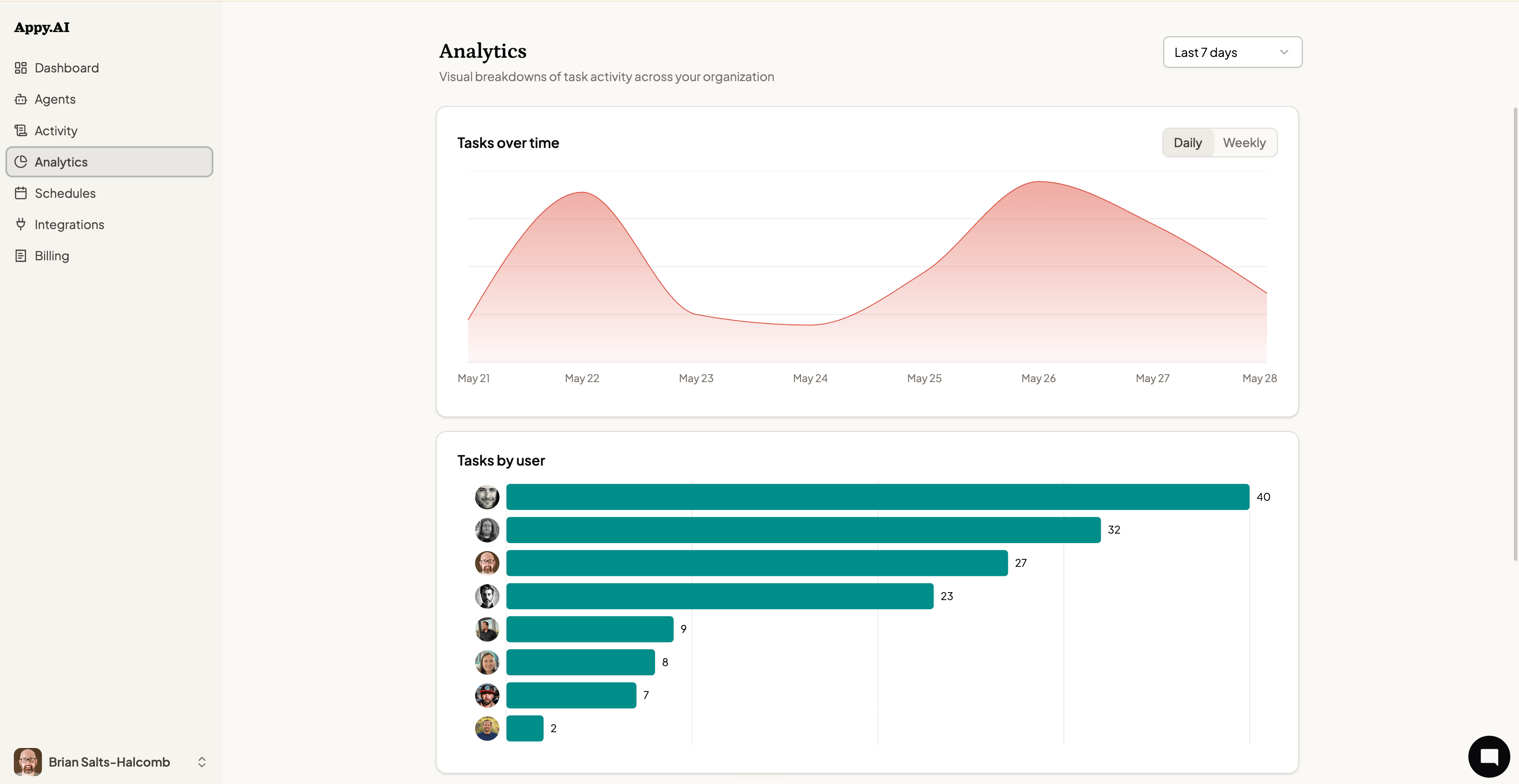
Analytics shows you how your team is using Appy.AI — task volume over time, which team members are most active, which channels and agents are doing the most work, and what your agents are producing.
 ## Time range
Use the dropdown in the top-right corner to change the time window:
* **Last 7 days**
* **Last 30 days**
* **Last 90 days**
All charts update together when you change the range.
## Tasks over time
The **Tasks over time** chart plots daily (or weekly) task volume as an area chart. Switch between **Daily** and **Weekly** views using the toggle in the top-right of the chart.
Use this chart to see whether agent usage is growing, spot spikes tied to specific projects, or identify quiet stretches where adoption may be lagging.
## Tasks by user
The **Tasks by user** bar chart ranks every team member by the number of tasks they've initiated in the selected time window. Each row shows a profile photo alongside their task count.
## Tasks by medium
The **Tasks by medium** radar chart shows how tasks are distributed across channels — web, Slack, email, schedule, and webhook. This tells you where your team naturally reaches for their agents most.
## Tasks by agent
The **Tasks by agent** radial chart shows which agents handled the most tasks in the period. Agents are plotted by name with bar length proportional to task volume — useful for understanding which specialists are carrying the most workload and where there may be underutilized agents.
## Assets produced
The **Assets produced** donut chart breaks down the files and outputs your agents have generated by type:
* **Markdown** — Notes, research, reports, and summaries
* **Document** — Word documents, PDFs, and formatted reports
* **Image** — Generated or edited images
* **Code** — Scripts, configuration files, and code snippets
* **Other** — Any additional file types
The total asset count is displayed in the center of the chart.
Analytics data updates continuously. There's no need to refresh — the charts reflect activity as it happens.
## Time range
Use the dropdown in the top-right corner to change the time window:
* **Last 7 days**
* **Last 30 days**
* **Last 90 days**
All charts update together when you change the range.
## Tasks over time
The **Tasks over time** chart plots daily (or weekly) task volume as an area chart. Switch between **Daily** and **Weekly** views using the toggle in the top-right of the chart.
Use this chart to see whether agent usage is growing, spot spikes tied to specific projects, or identify quiet stretches where adoption may be lagging.
## Tasks by user
The **Tasks by user** bar chart ranks every team member by the number of tasks they've initiated in the selected time window. Each row shows a profile photo alongside their task count.
## Tasks by medium
The **Tasks by medium** radar chart shows how tasks are distributed across channels — web, Slack, email, schedule, and webhook. This tells you where your team naturally reaches for their agents most.
## Tasks by agent
The **Tasks by agent** radial chart shows which agents handled the most tasks in the period. Agents are plotted by name with bar length proportional to task volume — useful for understanding which specialists are carrying the most workload and where there may be underutilized agents.
## Assets produced
The **Assets produced** donut chart breaks down the files and outputs your agents have generated by type:
* **Markdown** — Notes, research, reports, and summaries
* **Document** — Word documents, PDFs, and formatted reports
* **Image** — Generated or edited images
* **Code** — Scripts, configuration files, and code snippets
* **Other** — Any additional file types
The total asset count is displayed in the center of the chart.
Analytics data updates continuously. There's no need to refresh — the charts reflect activity as it happens.