> ## Documentation Index
> Fetch the complete documentation index at: https://help.appy.ai/llms.txt
> Use this file to discover all available pages before exploring further.
# Activity
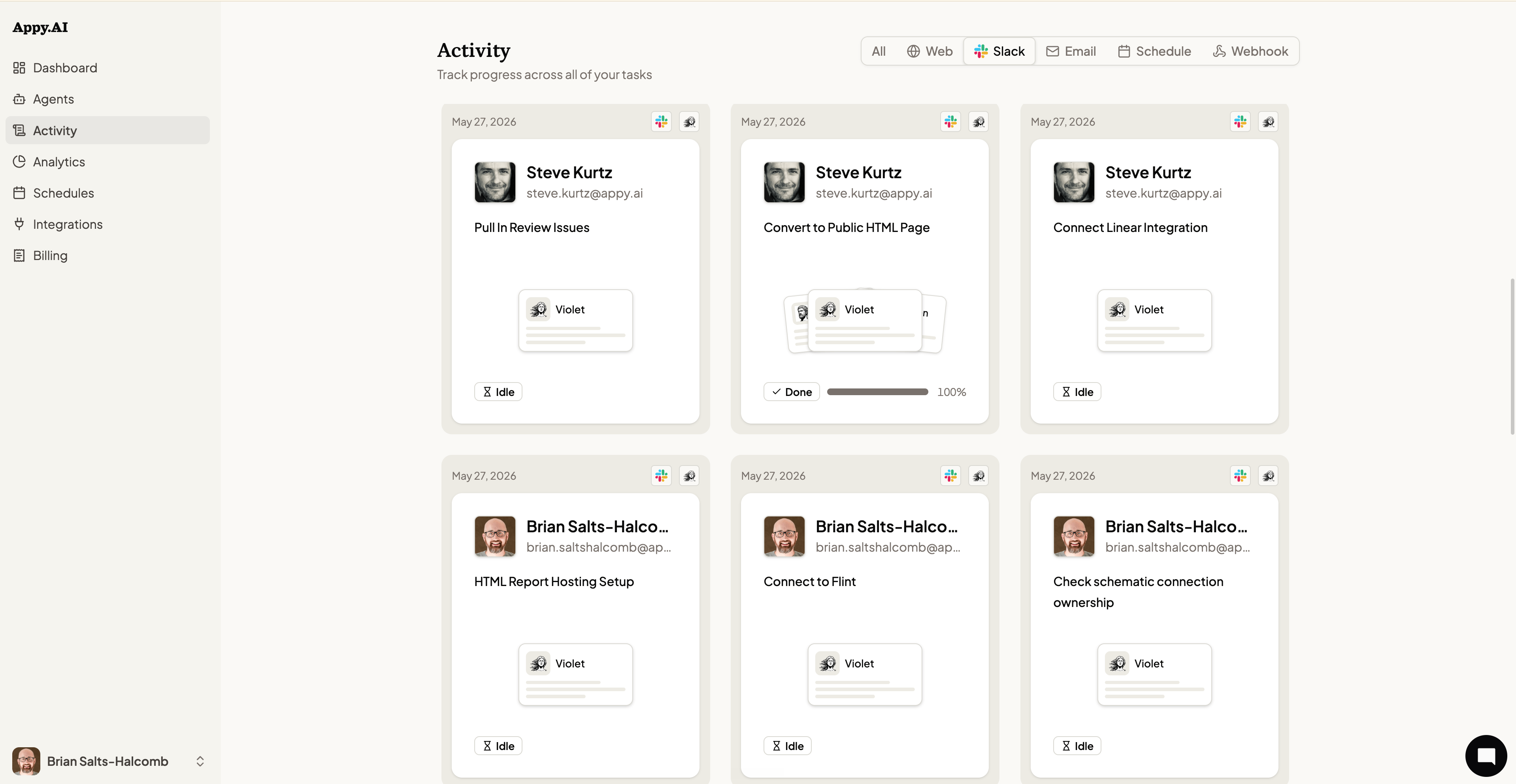
Activity is your audit trail. Every task triggered by anyone on your team — through Slack, Teams, email, a schedule, or a webhook — appears here in real time. You can see what's running, what's done, and who asked for what.
 ## Reading the activity feed
Each card in the feed shows:
* **Who requested it** — The team member who triggered the task, with their name and email.
* **Task title** — A short description of what the agent was asked to do.
* **Which agents were involved** — Violet and any specialists she delegated to.
* **Status** — Current state of the task (see below).
* **Progress** — A completion bar shows how far along a running task is.
* **Source** — The channel the task came from (Slack, web, email, etc.), shown as an icon in the top-right corner of each card.
## Task statuses
| Status | Meaning |
| ----------- | --------------------------------------------------------- |
| **Working** | The agent is actively executing the task right now. |
| **Done** | The task completed successfully. |
| **Failed** | The task encountered an error and didn't complete. |
| **Idle** | The agent's action is complete and waiting for user input |
## Filtering activity
Use the filter tabs at the top to narrow by source:
| Filter | Shows |
| ------------ | -------------------------------------- |
| **All** | Every task across all channels |
| **Web** | Tasks started from the web platform |
| **Slack** | Tasks initiated from Slack |
| **Email** | Tasks triggered by email |
| **Schedule** | Tasks run automatically on a schedule |
| **Webhook** | Tasks triggered by an external webhook |
## Task detail view
## Reading the activity feed
Each card in the feed shows:
* **Who requested it** — The team member who triggered the task, with their name and email.
* **Task title** — A short description of what the agent was asked to do.
* **Which agents were involved** — Violet and any specialists she delegated to.
* **Status** — Current state of the task (see below).
* **Progress** — A completion bar shows how far along a running task is.
* **Source** — The channel the task came from (Slack, web, email, etc.), shown as an icon in the top-right corner of each card.
## Task statuses
| Status | Meaning |
| ----------- | --------------------------------------------------------- |
| **Working** | The agent is actively executing the task right now. |
| **Done** | The task completed successfully. |
| **Failed** | The task encountered an error and didn't complete. |
| **Idle** | The agent's action is complete and waiting for user input |
## Filtering activity
Use the filter tabs at the top to narrow by source:
| Filter | Shows |
| ------------ | -------------------------------------- |
| **All** | Every task across all channels |
| **Web** | Tasks started from the web platform |
| **Slack** | Tasks initiated from Slack |
| **Email** | Tasks triggered by email |
| **Schedule** | Tasks run automatically on a schedule |
| **Webhook** | Tasks triggered by an external webhook |
## Task detail view
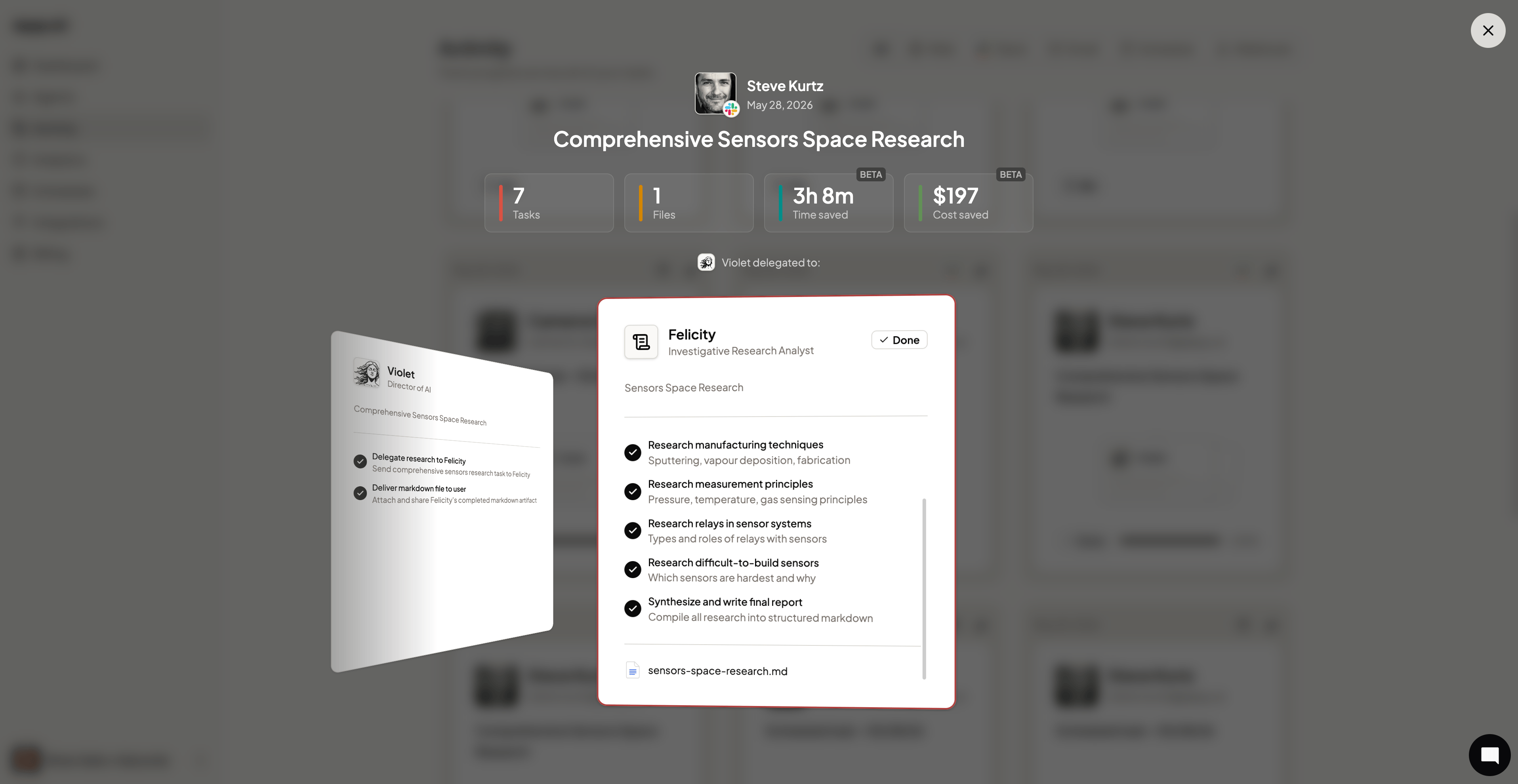 Click any card to open the full task detail. You'll see:
* A summary of the task and the inputs provided
* The plan Violet created, including each step and which agent handled it
* Files or artifacts the agent produced
* Time saved and estimated cost saved (beta)
The task detail view is useful for reviewing what an agent actually did — especially for scheduled tasks that run without you prompting them.
Click any card to open the full task detail. You'll see:
* A summary of the task and the inputs provided
* The plan Violet created, including each step and which agent handled it
* Files or artifacts the agent produced
* Time saved and estimated cost saved (beta)
The task detail view is useful for reviewing what an agent actually did — especially for scheduled tasks that run without you prompting them.